
Phone-based door access · Installed in Toronto & the GTA
Phones open the door. You decide who can.
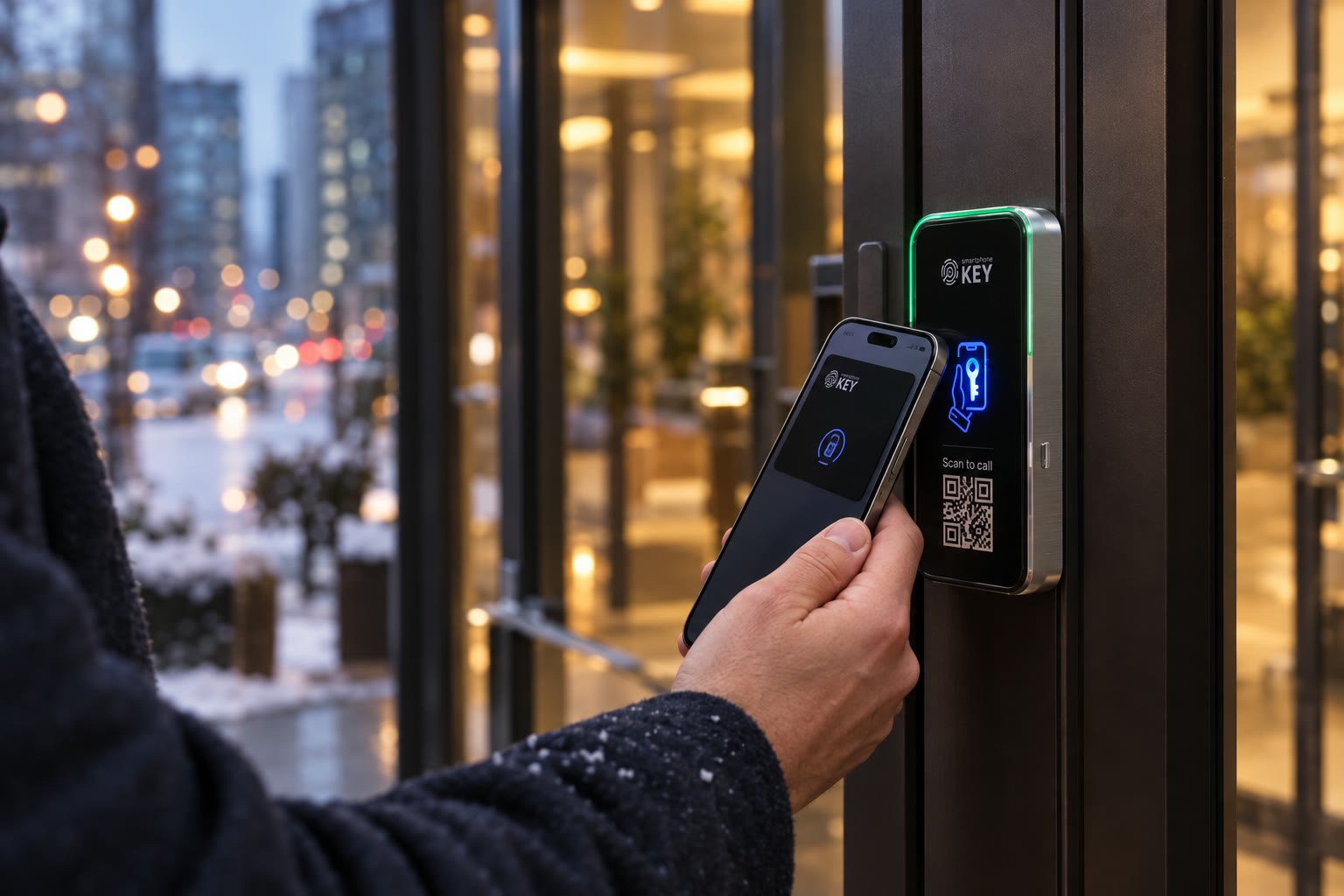
SmartphoneKey puts door keys in Apple Wallet or Google Wallet and gives you one place to add, time-limit and remove access. We check your door first, then set it up across Toronto and the GTA.
The film couldn’t load here.
Who it’s for
Choose the place. Start with the way people arrive.
A shared lobby, a training studio and a family entrance have different operating needs. Follow the relevant property page to prepare the permission and installation questions for yours.


Your entrance, described first
Tell us what should change at the door.
Start with the people using the entrance and the change you want to make. Choose the property type; the optional guide below can help describe the existing lock.
Describe the property
Tell us which entrance and people need access.
Review the door work
Establish suitable hardware, wiring and connection requirements.
Consider the proposal
Confirm installation scope, ongoing costs and first credentials.
Use the optional door guide to prefill space and lock details.
Try the reader
Hold your phone here.
Compare an accepted credential with an expired guest permission in this local illustration. The animation is a demonstration, not a connection to a real lock or a record from an installed property.
Local simulation only. The people, events and times are illustrative; no entry permission is issued.
Waiting for a phone.
- Coach Dana · Side door · opened
How it works
Regular users, occasional visitors and the person in charge.
Before selecting equipment, separate three needs: a person who uses the property regularly, somebody arriving for a visit, and the administrator maintaining those permissions.
Choose a personal credential
For everyday users, discuss a supported phone key or the product-specific NFC card. Establish the authorized opening and show the person where to present their credential. The chosen key does not determine whether the existing door hardware can be retained.
Give the visit its own arrangement
A guest permission can have defined dates and use limits. A visitor-call route instead helps an arrival request admission from a recipient. Choose the arrangement around the visit, the host and the route through the premises.
Keep changes with an administrator
Decide who handles a departure, a cancelled visit or a missing credential. SmartphoneKey provides portal administration; a change in a separate calendar, membership record or lease has not been established as an automatic update to the door.

By system
Start with the problem you are trying to solve.
Use the system pages to compare a controlled entrance, a different credential or a visitor-call route. They explain the relevant hardware and operating boundaries before you decide what belongs in an installation proposal.
The reader
The visible reader is part of a connected entrance.
This illustration separates credential presentation, a visitor request and the equipment that releases the door. The proposed installation needs to bring those parts together at the actual opening.
Tap area
Present the supported phone credential or product-specific card at this part of the reader. Issuance and the intended door permission belong in the user handover.
QR code for visitors
The documented QR route lets a visitor request contact with the intended recipient. Agree where guests should wait and what they do if nobody answers; a visible QR marking is not a staffed reception service.
Electric lock
The built-in relay connects the permission decision with suitable powered locking hardware. Identify the existing release and assess retention rather than assuming the reader replaces every component.
Low-voltage power
The reader documentation lists 12–24 V DC. Establish the appropriate supply for the selected equipment and the proposed wiring route; the drawing is not a specification for every lock.
Exit button
The listed kit includes an inside exit button. Review how occupants leave at this particular property, including the chosen locking hardware and its behaviour during an interruption.
Wi-Fi model
Joins your network during setup.
LTE model
Uses a SIM card, for doors where Wi-Fi isn’t practical.
SmartphoneKey also describes Matter support over Wi-Fi or Thread for smart-home setups.
In the box, per SmartphoneKeyReader with backplate · exit button with backplate · wall-mount kit · hidden-bolt screwdriver · two QR stickers
Match access to the reason for arriving
A key, a guest limit and a call are different tools.
Choose the permission before choosing what the person carries. These documented options answer different entrance questions.
- A regular member of the property
- Consider a supported Wallet credential for somebody who returns routinely. Agree the openings included and the administrator responsible for changing that permission later.
- A person preferring a physical card
- Discuss the SmartphoneKey NFC-card option and its replacement procedure. Another manufacturer's existing fob or card needs compatibility checked separately.
- A visit with an agreed end
- Guest dates and use limits can support a particular appointment or stay. Keep the permission settings connected to the actual arrangement and review them if the visit changes.
- An arrival without a continuing key
- The QR calling option provides a way to ask the intended recipient for admission. Plan recipient availability and an alternative for visitors unable to use that route.
- The hours an opening is used
- The product describes weekly lock schedules. Treat the premises schedule, a guest permission and the availability of assistance as separate operating decisions.
- A permission that is no longer needed
- Name the person who handles withdrawal. Review the relevant administrator action and recorded access interaction without treating either as proof of everyone physically entering.
Options are drawn from the product materials. The selected package and assessed property determine what is included.
Before selecting equipment
Six questions to bring about the entrance you manage.
A useful first conversation connects the operating need with the opening, its existing equipment and the people able to approve changes.
Which opening is the problem?
Identify the particular entrance rather than treating the whole property as one door. Include any shared lobby or separately controlled room on the intended arrival route.
Who can approve the work?
Bring the responsible owner, manager or other approving party into the discussion. A person using the entrance may have different authority from the party controlling its hardware.
What is already installed?
Describe the mechanical lock, electric release, reader or visitor panel in use today. Existing equipment may be assessed for retention; compatibility is not established by appearance alone.
What physical work can the site support?
Discuss supply and wiring routes, access to service areas and finished surfaces near the door. Include the selected lock and reader arrangement in the proposal.
How will people get help and leave?
Explain staffing, guests who cannot use the intended credential and the way occupants exit. Review the actual entrance fallback rather than relying on a universal phone or power promise.
Who will maintain access afterward?
Choose an administrator for departures, lost credentials and changed visits. Ask for that handover, the installed scope and continuing charges to be explained before agreement.
Not sure what the present hardware is called? Use the optional starting-point guide, then bring photographs to the assessment discussion.
Optional guide
Prepare a description before the assessment.
Use the property, lock and connection questions to prepare a starting point. This local guide does not approve hardware or replace a site assessment. Its selections can prefill the request preview.
Your likely starting point
Start with photos of the door
That is normal. Photos of both sides of the door, the frame edge and the lock show the team what you have before a visit.
Not sure about Wi-Fi at the door? The LTE model uses a SIM card and mobile signal instead.
Worth asking about for a gym or studio
- Wallet keys for members and staff
- Key cards for anyone who would rather not use a phone
- Guest keys with a start and end time for trials and visitors
- An activity log of entries at each door
A ready-made link with membership or billing software is not confirmed. Access is managed in SmartphoneKey’s own admin.
When several people manage the property
Bring the operating and installation contacts together.
The person specifying access, the party approving building work and the administrator issuing keys may be different people.
- For the property manager
- Identify the sites, controlled openings and people responsible for resident or staff changes. Discuss the intended local administration and any bulk-import requirement with the selected package.
- For the person responsible for existing systems
- Bring the lock, reader and visitor-equipment details. List any required software, camera or device connection for separate verification; a standards label alone does not confirm the whole arrangement.
- For the installation contact
- Clarify service-area access, the supply and cable route, occupied periods and finishing constraints. Establish the owner-approved scope of any temporary installer permission.
- For the future administrator
- Prepare a new user, a limited visitor and a withdrawn credential as handover scenarios. Ask who maintains the connection and what continuing charges belong to the agreed setup.
Describe the requirement and responsible contacts before committing to an installation.
Decisions before a new entrance setup
Understand the boundaries before choosing the equipment.
Start with the people, the door and the responsibility for maintaining access.
Is this the manufacturer's website?
This website presents a local installation proposal using SmartphoneKey products for Toronto and the GTA. It is separate from the manufacturer. Product capabilities are distinguished from the physical work, selected package and operating arrangements needed at a particular property.
Will phone access replace every key already in use?
Start with the intended openings and credential types. A reader works with a suitable assessed electric locking arrangement, while retained mechanical keys or other systems need their own management. Do not assume that one new credential removes every existing permission or hardware dependency.
What is different for somebody who only visits once?
A host or administrator can consider defined guest dates and use limits rather than a continuing household or staff credential. The QR calling route instead lets an arrival request admission. Choose between those approaches around the visit and the recipient who is responsible for it.
Does a membership cancellation or booking change update access by itself?
An automatic connection to membership, reservation, HR or property software has not been confirmed. Make the intended change a task for the responsible administrator unless the particular integration has been verified. Check the permission as well as the business record.
Can the records show everybody who was inside?
Recorded credential interactions help review an entrance event. Administrator changes have a separate audit trail. Neither proves who accompanied somebody through a door, the duration of a stay or what happened indoors. Interpret the record alongside the relevant property process.
What should we plan if a phone or the electrical supply is unavailable?
Discuss the supported alternative credentials, assistance and the behaviour of the selected lock at the assessed opening. A physical card can be another credential but cannot power the reader or release. Agree how occupants leave and how the property will handle an interrupted arrival.
What determines the proposed installation cost?
The openings in scope, retained or new hardware, supply, wiring route, connection and credential package all matter. Ask for the physical work, interruption, administrator handover and continuing charges to be explained together. No invented starting price or fixed installation duration is given here.
Where should I start if several parties control the entrance?
Identify the party able to approve each part of the work and the person who will administer access. A common lobby, rented suite and private room can have different boundaries. Use the property or system page that fits the requirement and bring the relevant contacts to the assessment.
Next step
Start with an entrance and a clear reason to change it.
Describe the property, the people using it and the person responsible for approval. Review the assessed work and continuing costs before deciding what to install.
Request a door checkA property brief before a product choice
Define the arrival problem, the doors involved and who can approve alterations. The resulting proposal should distinguish equipment, physical work, permission management and continuing charges so the decision covers the entrance you actually use.
Toronto and GTA properties: confirm the entrance location and assessment availability before planning a visit.